Steampunk Spotter Visual Studio Code Extension: Setup and scanning
July 4, 2023 - Words by The Spotter team - 3 min read
This blog post explores the Visual Studio Code (VSC) extension of Steampunk Spotter, a powerful platform that helps you identify and fix errors in your Ansible content, making automation more reliable, secure, and effective.
You can install the extension from the Visual Studio Marketplace or Open VSX Registry. The extension requires a Spotter user account and the Spotter CLI installed in the console that you use with VS Code by default.
Let’s dive into the setup and scanning process.
Settings
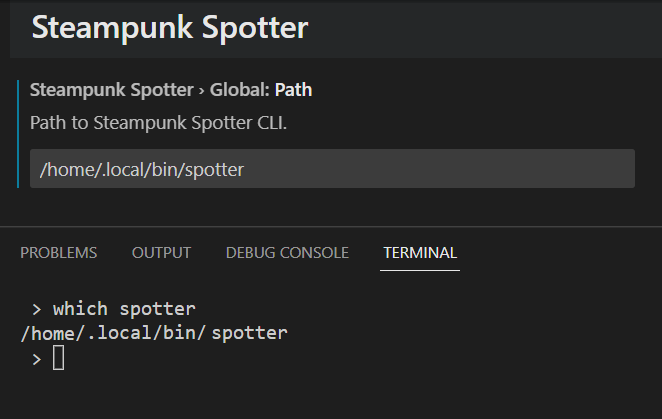
Retrieving the CLI path: To begin, you can use the terminal command, which spotter, to retrieve the path to the Spotter CLI. This step ensures a seamless integration.

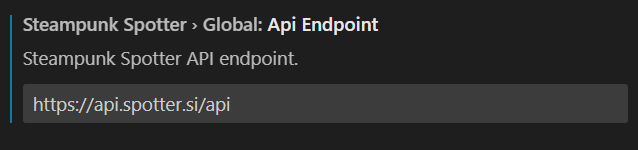
Customizing the URL: If using an on-prem Spotter instance, you can customize the URL through the provided field.
API token: You can fetch the token from the Spotter app under “My Settings” in the “Profile settings” section. Once obtained, copy the API token into the corresponding field in the extension’s settings.

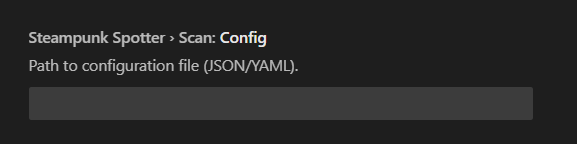
Scan level configuration: You can set the path to the configuration file (JSON/YAML).
Project ID: You can organize your scans according to project IDs. You can find the ID in the Spotter app. Copy the project ID into the designated field in the extension’s settings.

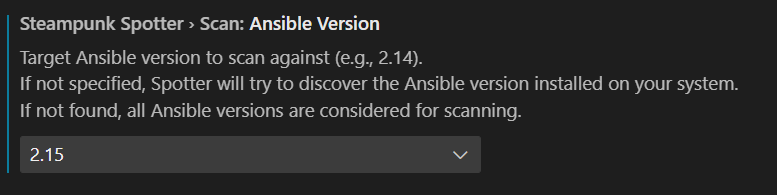
Ansible version: You can select the Ansible version against which you want to scan. This option allows you to align the scanning process with your specific Ansible environment.
Exclude Values: Omit parsing and uploading values from Ansible Playbooks.

Exclude Metadata: Omit collecting and uploading metadata, i.e., file names, line, and column numbers.

Display level: The display level determines the level of scans. For example, setting it to “warning” will suppress hints.

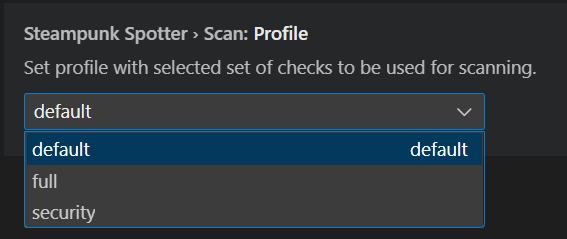
Scanning Profile: Spotter offers default, full, and security scanning profiles. The default profile covers basic scanning needs, while the full profile provides a more exhaustive scan. The security profile offers additional recommendations and advice on crafting secure playbooks.
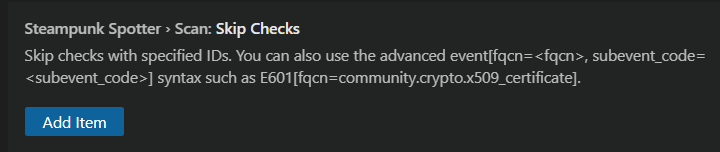
Skipping Checks: If you want to skip specific checks, you need the ID of the check you wish to omit. You can find the check ID in the check catalogue within the Spotter app. Add the check ID to skip it during the scanning process.
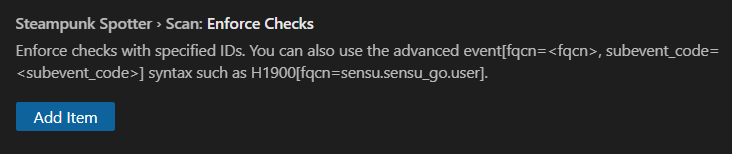
Enforcing Checks: If you want to enforce specific checks, you need the ID of the check you wish to enforce. You can find the check ID in the check catalogue within the Spotter app. Add the check ID to enforce it during the scanning process.
Scanning a playbook
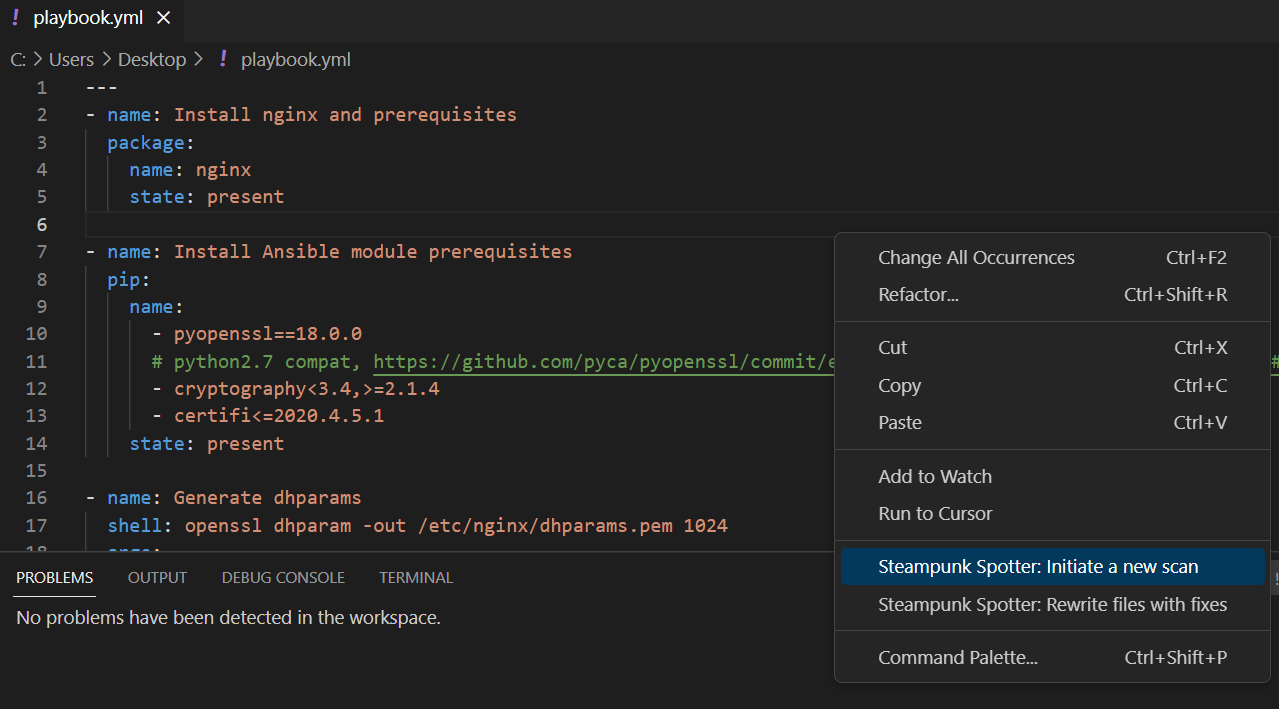
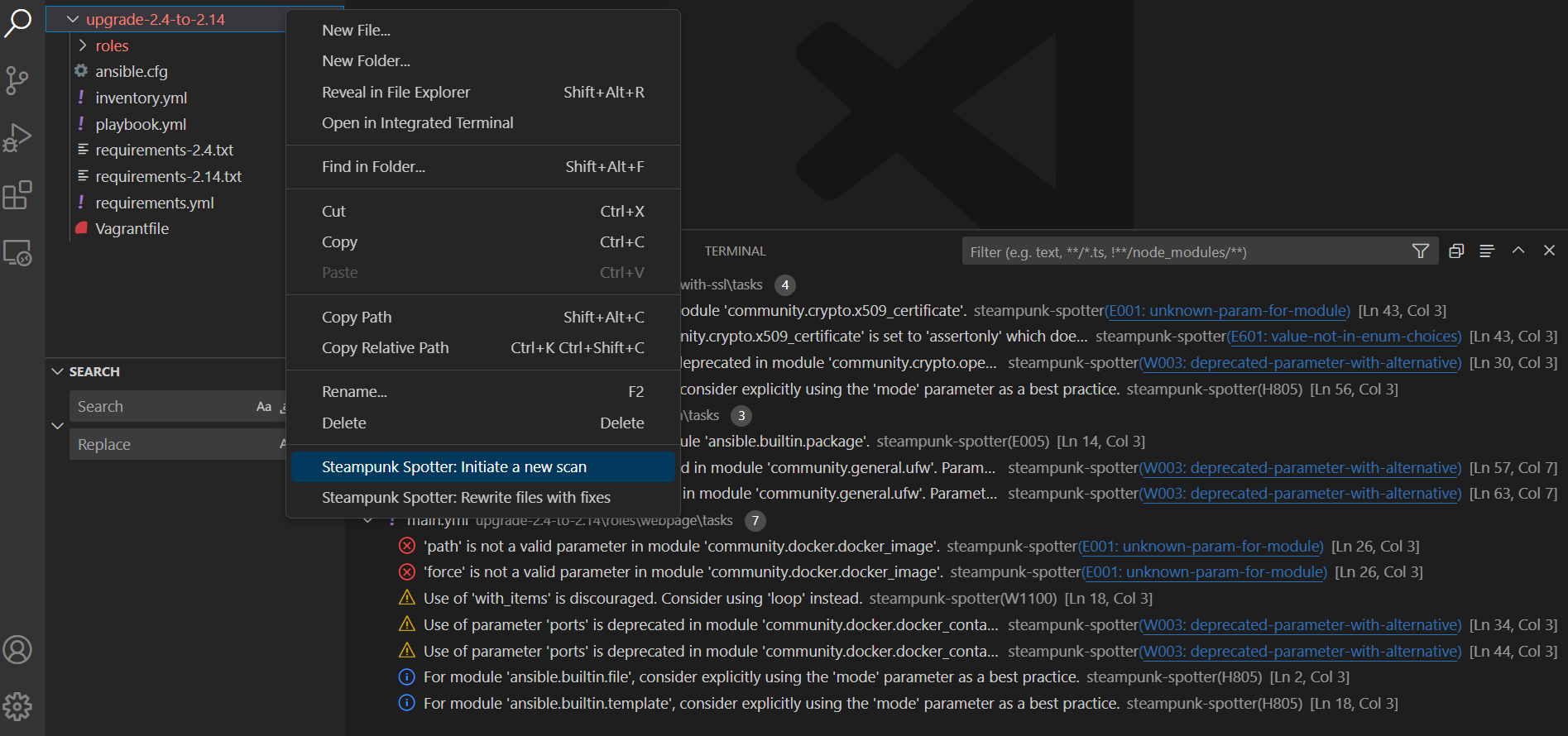
Now that the Spotter extension is set up let’s proceed with how to scan a playbook. You right-click and choose “Initiate a new scan.”
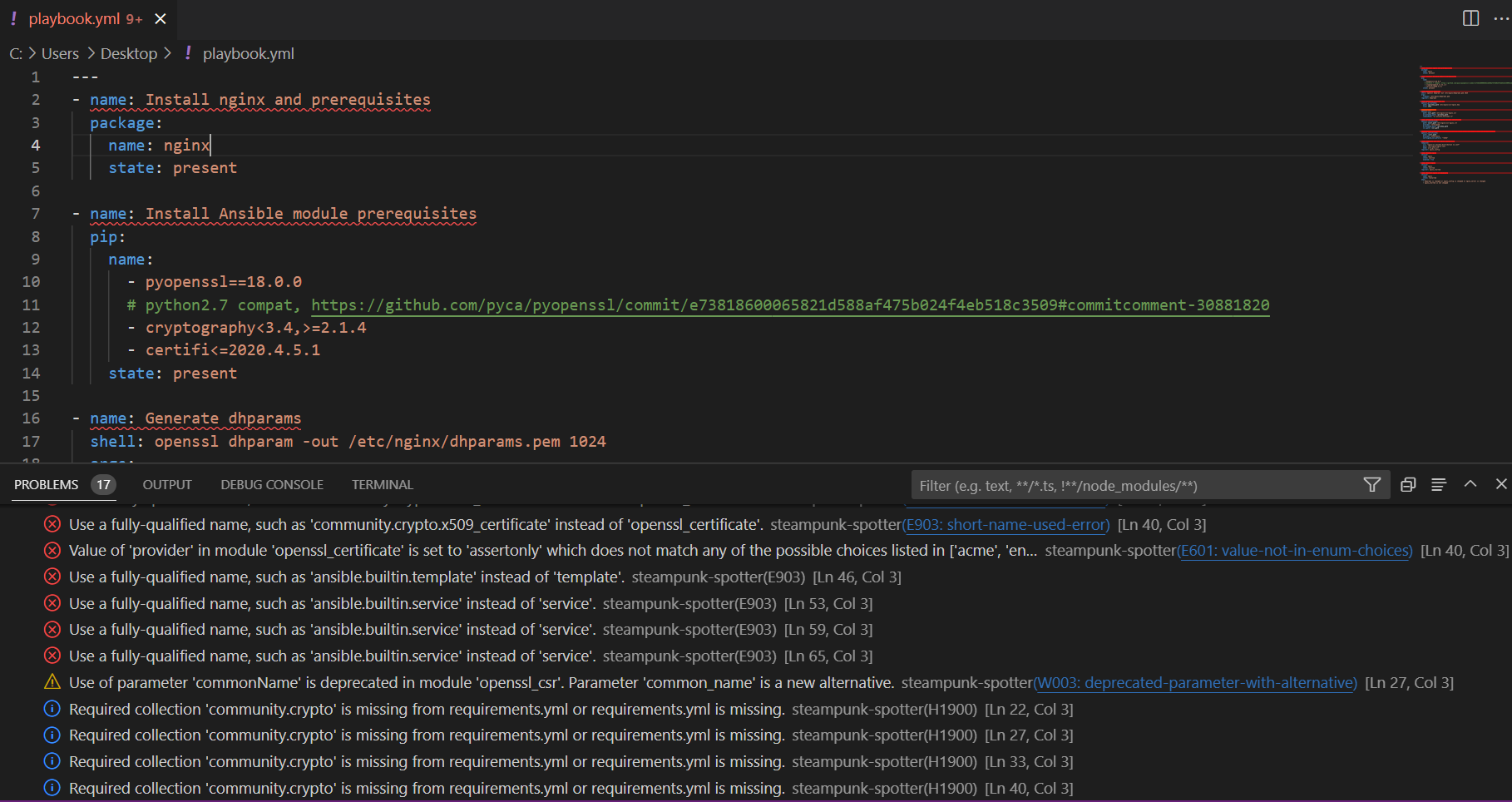
Upon completion, Spotter will provide you with a list of identified errors and links to the module documentation.
Automatic fixing
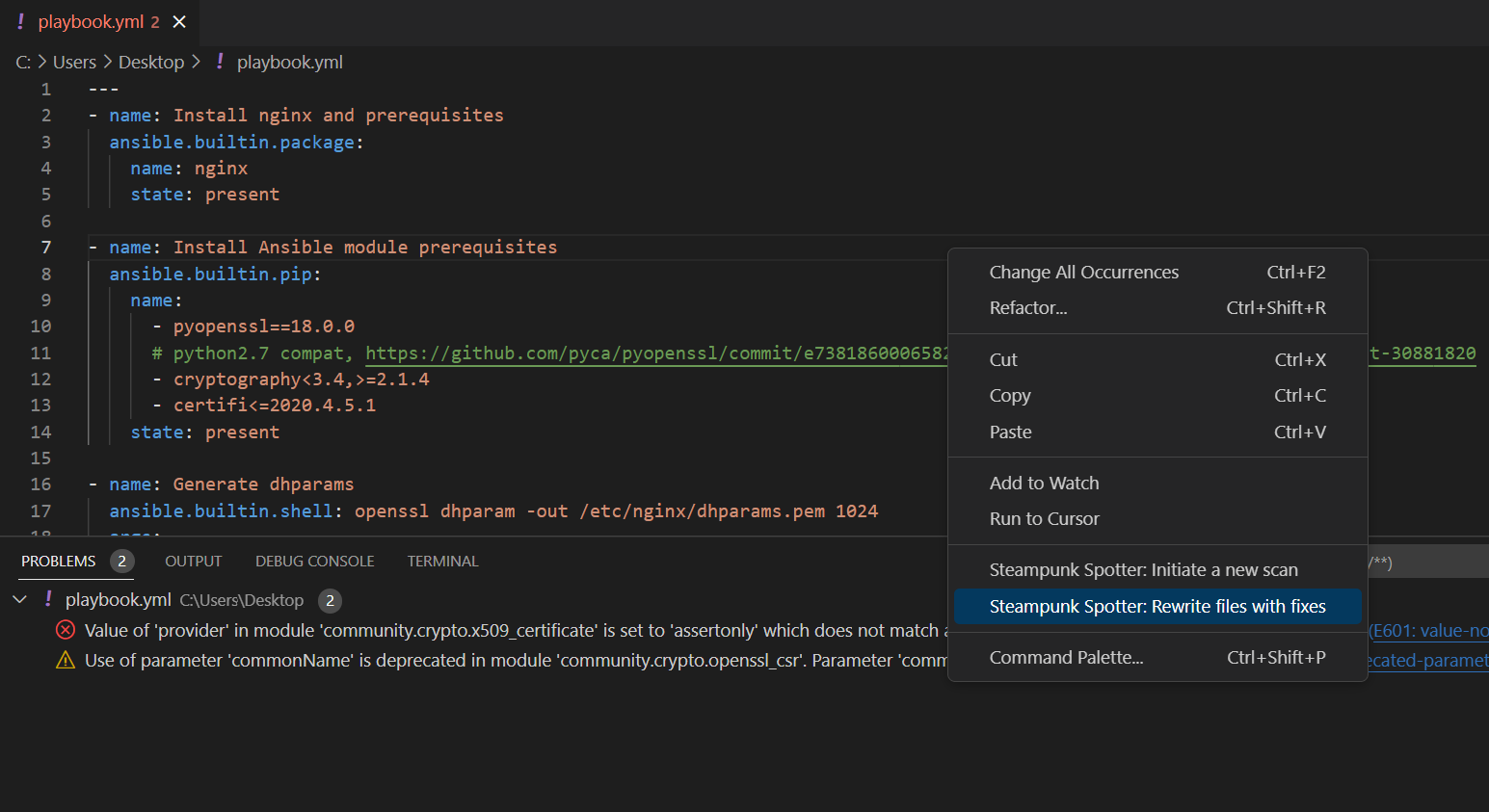
Spotter offers a rewrite function that can automatically fix many errors. Use this feature to address the identified issues. Once applied, the errors will be resolved, and the playbook will be updated accordingly.
Scanning a directory structure
Extend the scanning process to the entire directory structure. Spotter will scan multiple files within the specified directory and identify any errors.
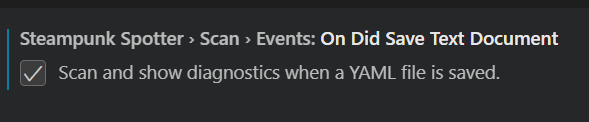
Automatic scanning on file save
Spotter allows you to automatically scan your files after they are saved to streamline the scanning process, ensuring prompt error detection. If you make a mistake in the code, and save the file, Spotter will immediately notify you of any errors found.
Using Spotter in Windows Subsystem for Linux (WSL)
Easily run Steampunk Spotter on your WSL playbooks using Visual Studio Code, bringing together Windows convenience and Linux power in one go.
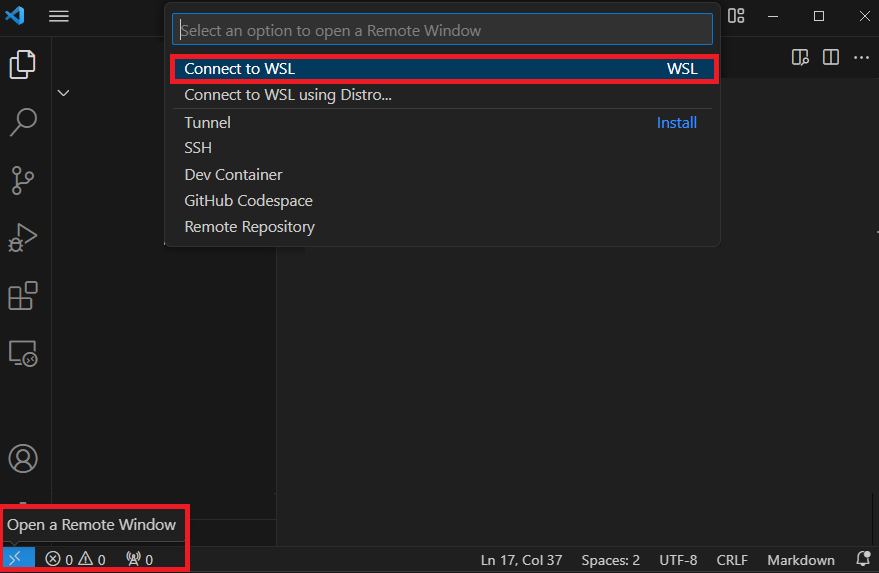
Your Visual Studio Code has to run in WSL. To use WSL within VS Code, just open Visual Studio Code, hit the Open a Remote Window icon at the bottom left, and choose Connect to WSL from the top menu. You’ll be all set to use Linux tools and files right from VS Code!
Pop the Steampunk Spotter extension into your WSL via VS Code — no local installs, please, because they will not work. Need a hand? Check out the guide here. And don’t forget, the Spotter CLI should be installed in your chosen WSL distribution too.
Watch this video to follow the installation process step by step.
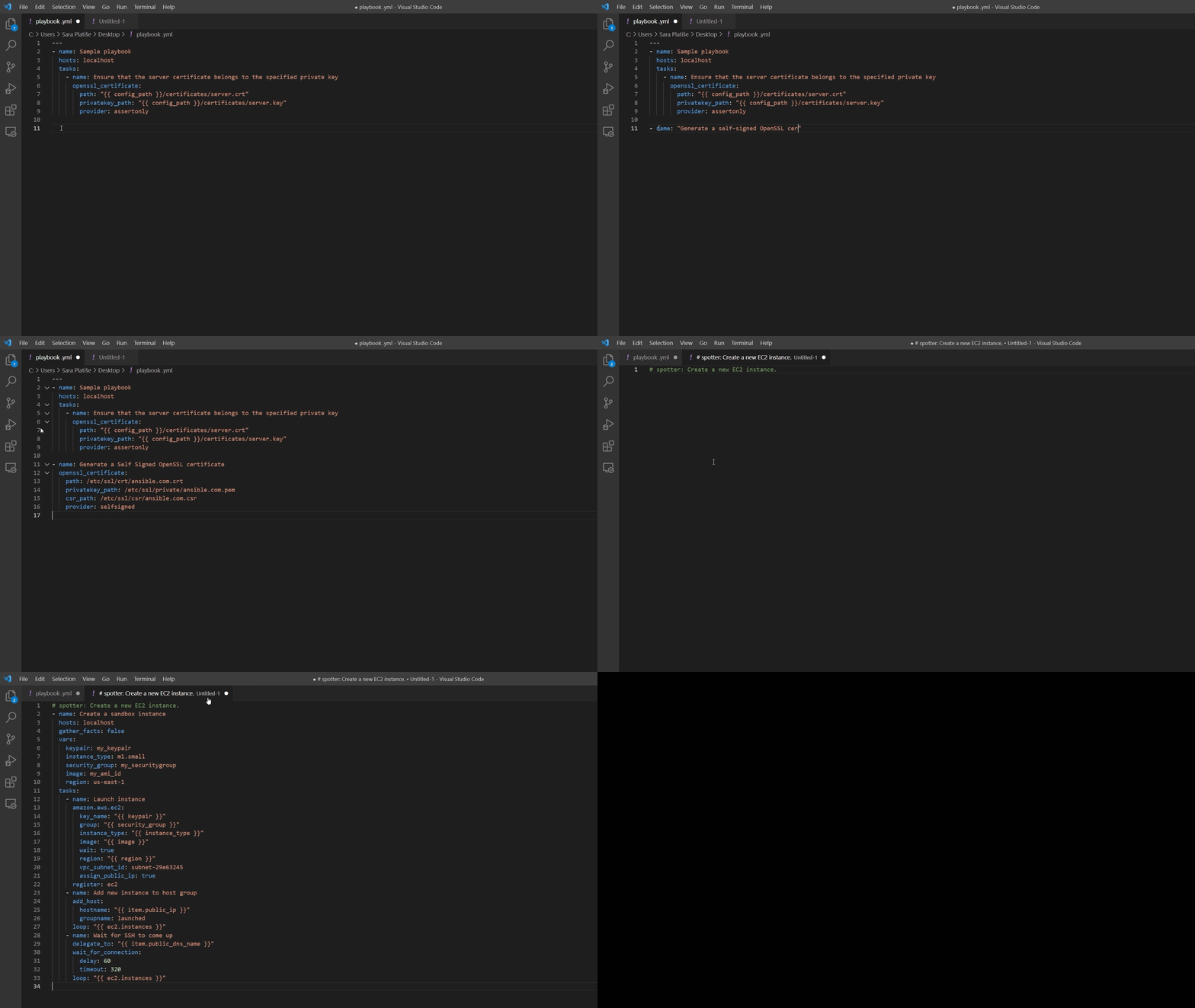
Speed up playbook writing with Assisted Playbook Writing feature
The Spotter VSC extension not only offers enhanced scanning abilities but offers an Assisted Playbook Writing feature that you can explore in this blog post or watch this short demo.